
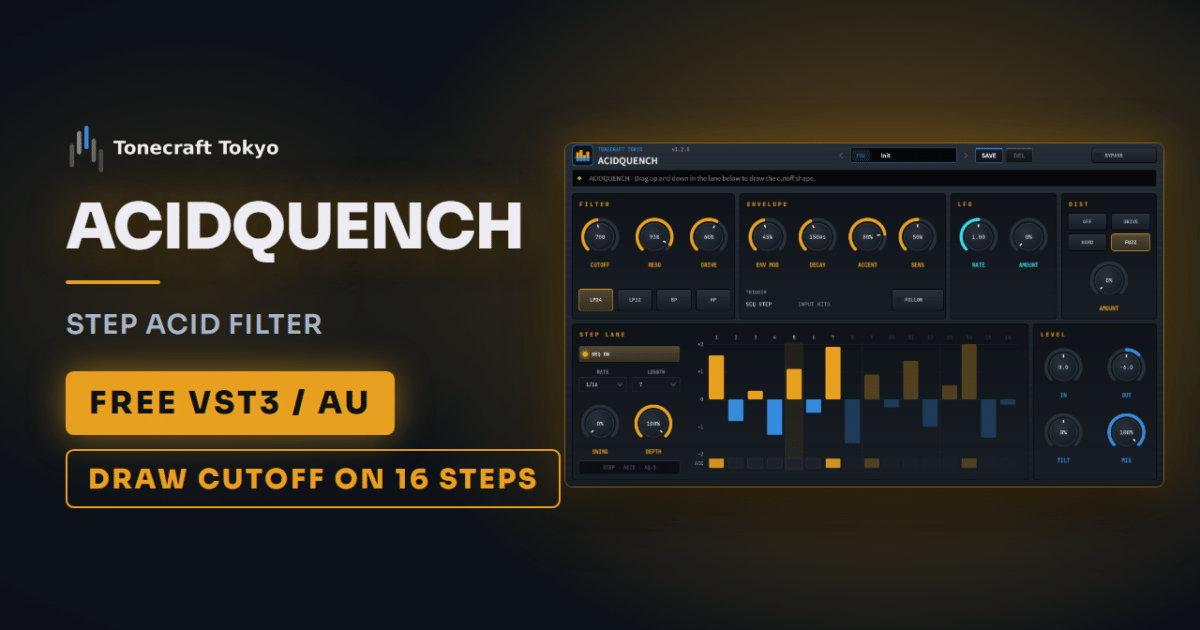
ACIDQUENCH puts an acid-style filter on any track and lets you draw the cutoff across 16 steps, in time with your DAW. A plain drum loop, pad or bass turns into a moving pattern without writing automation.
Win / Mac VST3 / AU
ACIDQUENCH
ACIDQUENCH puts a strong filter on any audio and lets you draw its cutoff across 16 steps.
Release date
2026-08-17
File size
Win 4.18 MB / Mac 12.48 MB
OS
Windows / macOS
Format
Win: VST3 / Mac: VST3, AU (64-bit)
Disclaimer & License
1. No warranty
This software is provided without any guarantee that it will work. It may not work correctly depending on your combination of OS, DAW and host.
2. Limitation of liability
The distributor is not liable for any damage caused by using or being unable to use this software, including DAW crashes, data loss, effects on your productions, or any other direct or indirect damage.
3. License
✅ Use in commercial and non-commercial productions: allowed
✅ Installation on your own computers, including more than one: allowed
❌ Redistribution to third parties: prohibited (sharing the link to this page is fine)
❌ Modification, decompilation or reverse engineering: prohibited
4. Feature requests
This software is a personal project made out of the author’s own interest. Requests for new features, changes or bug fixes are not accepted, including those sent on social media or in comments.
5. Updates and support
There is no obligation to provide updates or support, and distribution may end without notice. Bug reports may not be received or addressed.
6. Governing law
These terms are governed by the laws of Japan. This is a translation of the Japanese original; if they differ, the Japanese version prevails.
About this plugin
Video
Changelog
2026-11-02 V1.2.0 New interface, English support
Installation (Windows)
01
Download
Select Windows in the download box above and save the .zip file.
02
Extract
Extract the zip file and take out the .vst3 file.
03
Copy to the VST3 folder
Copy the .vst3 file to C:\Program Files\Common Files\VST3\.
04
Scan in your DAW
Restart your DAW or run a plugin scan, and it will show up.
Installation (macOS)
01
Download
Select macOS in the download box above and save the .zip file.
02
Extract
Extract the zip file and take out the .vst3 and .component files.
03
Copy to the VST3 folder
Copy the .vst3 file to ~/Library/Audio/Plug-Ins/VST3/. To open it, choose Go → Go to Folder in Finder and enter this path.
04
If you use AU
Copy the .component file to ~/Library/Audio/Plug-Ins/Components/.
05
Unblock it in macOS
Open Terminal (Applications → Utilities → Terminal), type xattr -dr com.apple.quarantine followed by one space, then drag the .vst3 file you copied into the Terminal window and press Return. Do the same for the .component file. Without this step, macOS says the plugin “is damaged and can’t be opened” or that it “cannot verify the developer”, and your DAW will not load it. You need to do this again whenever you reinstall it for an update.
06
Scan in your DAW
Restart your DAW or rescan plugins, and it will show up. If the AU does not appear, restart your Mac.