
Load the same compressor preset on different tracks and it can clamp down on one and barely touch another. Usually that’s because each track hits the plugin at a different level.
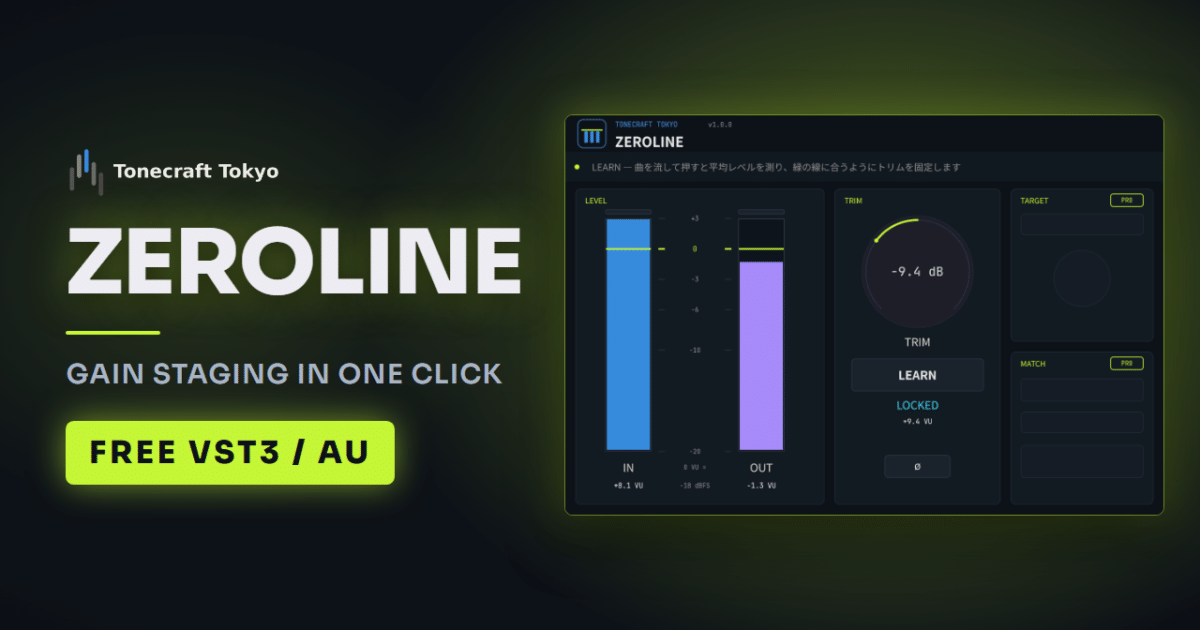
Gain staging is the prep step of bringing every track to a reference level before you start mixing. With our free plugin ZEROLINE, you play the track and press a button, and it sets the trim for you.
- Match the average level going into your effects. The usual reference is 0 VU = −18 dBFS
- Measure the fullest part, like the chorus. Measuring a quiet intro raises the level too far
- Once the levels match, build the balance with your faders
What gain staging gives you
Once the levels match, settings and presets carry over to other tracks more easily, and a compressor threshold you set on one track is a good starting point on the next.
Inside a DAW, going over 0 dBFS on a track doesn’t clip by itself. Still, a plugin fed too hot can distort further down the chain. Matching levels at the input also keeps things from creeping up.
The reference: 0 VU = −18 dBFS
A common reference is to set 0 on the average level meter (VU) to −18 dBFS. Because it reads the average, not the peak, a drum that is loud for an instant and a sustained vocal can be measured on the same scale.
The free version of ZEROLINE is fixed at −18 dBFS.
Matching levels with ZEROLINE
Put ZEROLINE first in each track’s plugin chain. On an instrument track, put it right after the instrument.
- Play the song in your DAW
- Press LEARN (the display shows LEARNING)
- Play a few seconds of the part at its fullest
- Press LEARN again, or stop playback
When the display shows LOCKED, the trim is fixed. Silent parts are left out of the measurement automatically.
Because the value stays put during playback, it won’t flatten your dynamics the way a slow compressor would. You can see the value on the TRIM knob and fine-tune it manually.
When the display doesn’t say LOCKED
| Display | Meaning | What to do |
|---|---|---|
| PEAK WARNING | Matching the average is likely to push peaks close to 0 dBFS | If the input meter of the next plugin maxes out, lower the TRIM knob a little |
| OUT OF RANGE | Matching needs more than ±24 dB | If +24 dB isn’t enough, the recording or instrument output is too quiet, so raise it. If −24 dB isn’t enough, lower it |
| NO SIGNAL | No audio came in | Check where it is placed and that the track is playing |
After matching, use your faders
After gain staging, every track plays at the same average level. The hi-hat is as loud as the vocal, so it isn’t a mix yet. Now use the faders to decide what comes forward.
You need Pro to change the reference or compare fairly
ZEROLINE Pro lets you choose the target from VU, LUFS (perceived loudness) or peak, and set the level, for example −20 dBFS to match how you work.
With MATCH, one instance before an effect and one after cancel the level change the effect causes. That removes loudness bias, so you hear only the change in sound. LEARN ALL measures every ZEROLINE Pro in the project at once.
Installation and the status messages are explained on the product page and in the manual. It runs on Windows (VST3) and Mac (VST3 / AU).