
Keyboard clicks while you game, or an air conditioner or PC fan humming in the background, can end up on your stream. The OBS Noise Gate only closes the mic while you aren’t talking, so noise that happens while you speak goes straight through. To remove it, you need AI noise reduction.
- Try the built-in OBS Noise Suppression (RNNoise) first. If it is enough, you don’t need anything else
- If RNNoise eats into your singing, you want to control how hard it works, or you have no RTX GPU, try SILENTIQ
- Check whether it works from a recording, not by ear while talking
Which noise reduction to use
| RNNoise (built into OBS) | NVIDIA Noise Removal | SILENTIQ | |
|---|---|---|---|
| Cost | Free | Free | $6.50 (free trial) |
| Needs | Nothing | An RTX GPU (Windows only) | Nothing (runs on the CPU) |
| Strength control | No | Yes | Yes |
| Singing | Can eat into high and long notes | Less than RNNoise | Has a mode for singing (VOCAL) |
If you only talk and game, and RNNoise sounds fine to you, that is enough. On a PC with an RTX GPU, NVIDIA’s noise removal is also free.
SILENTIQ is for when RNNoise removes too much or too little, when long notes get cut in singing streams, or when your GPU isn’t an RTX.
Test it in your own room
Noise is different in every room, so test it before buying. The trial mixes in about 0.5 seconds of white noise every 30 seconds, which won’t get in the way of judging the result.
- Run your air conditioner and fans as usual. Talk for about a minute while gaming and typing, and record in OBS
- Turn the SILENTIQ filter off with the eye icon and record the same way
- Compare the two on headphones or earbuds
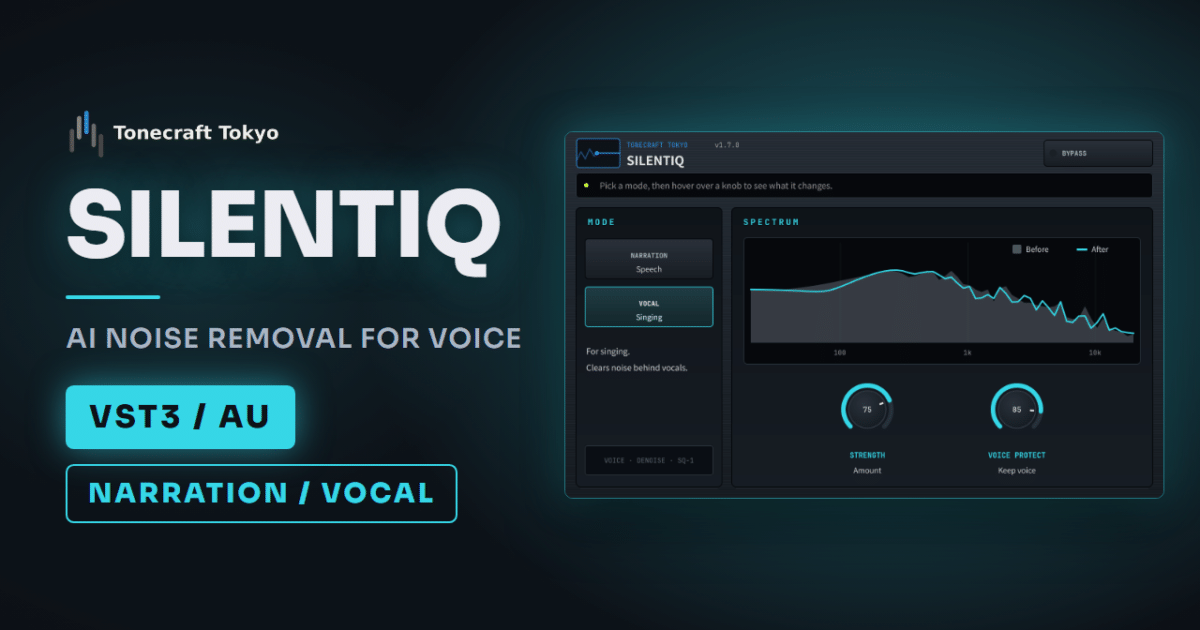
Use MODE NARRATION for talking and VOCAL for singing. Set STRENGTH to the lowest value that removes the noise. If your voice sounds muffled or metallic, STRENGTH is too high.
Line up the delay in OBS
SILENTIQ adds processing latency: about 40 ms for talking and about 60 ms for singing. If the lag bothers you, fix it in OBS.
- Out of sync with your webcam: add a “Video Delay (Async)” filter to the camera source and set it to 40 ms for talking
- Behind the backing track in a singing stream: set “Sync Offset” to 60 ms on the source playing the backing track (gear icon in the audio mixer, then “Advanced Audio Properties”)
If it can’t remove all the noise, look at the mic
Noise reduction works best when your voice is much louder than the noise. If the mic is far from your mouth and close to the keyboard, it is harder to separate voice from noise.
- Move the mic closer to your mouth and lower the mic input a little
- Don’t place the mic right above the keyboard or next to a PC fan
- If a condenser mic picks up too much of the room, switch to a dynamic mic, which mostly picks up sound right in front of it
Before you add it to OBS
SILENTIQ is a VST3 plugin (and AU on Mac), so the built-in “VST 2.x Plug-in” filter can’t load it. Add it through the free atkAudio Plugin for OBS. Setup is on the product page and in the manual, and OBS setup is in How to Use VST3 Plugins in OBS Studio.
Remove the built-in Noise Suppression, and put SILENTIQ before any filter that shapes your voice. The full chain is in OBS Mic Filter Order.
Download
If your voice gets buried under the game, add our free voice plugin VELVOX after SILENTIQ.