
OBS applies your mic filters from top to bottom. Get the order wrong and you can end up boosting air conditioner noise before it is removed, or leave a limiter in the middle of the chain where it can’t stop distortion.
- The basic order: Gain → Noise Suppression → Noise Gate → voice shaping (EQ, Compressor) → reverb or echo → Limiter
- With our plugins, SILENTIQ goes in the noise slot, VELVOX in the voice slot and VELCANTO in the reverb slot
- SILENTIQ adds about 40 ms of latency for talking and 60 ms for singing. In singing streams, line up the backing track
Ordering the built-in filters
| Order | Filter | Job |
|---|---|---|
| 1 | Gain | Raises a quiet mic. Skip it if your level is fine |
| 2 | Noise Suppression | Removes fan or air conditioner noise under your voice |
| 3 | Noise Gate | Closes the mic while you aren’t talking |
| 4 | 3-Band Equalizer / Compressor | Shapes the body and clarity of your voice and narrows the gap in loudness |
| 5 | (reverb or echo) | Not among the built-in OBS filters |
| 6 | Limiter | Caps the peaks so shouting doesn’t distort |
Gain goes first because the Noise Gate and Compressor after it trigger based on the input level.
Noise is removed before the voice is shaped because a compressor raises quiet sounds. Any noise left in gets raised too. The Limiter goes last to catch peaks from anything earlier in the chain.
Three plugins for what the built-in filters lack
There is no reverb or echo for singing streams. The equalizer and compressor make you choose frequencies, thresholds and ratios yourself. And the built-in Noise Suppression (RNNoise) can be heavy-handed on voices, sometimes cutting into long notes when you sing.
We make plugins for streamers that cover these with two or three knobs each.
VELVOX: shapes your talking voice (free)
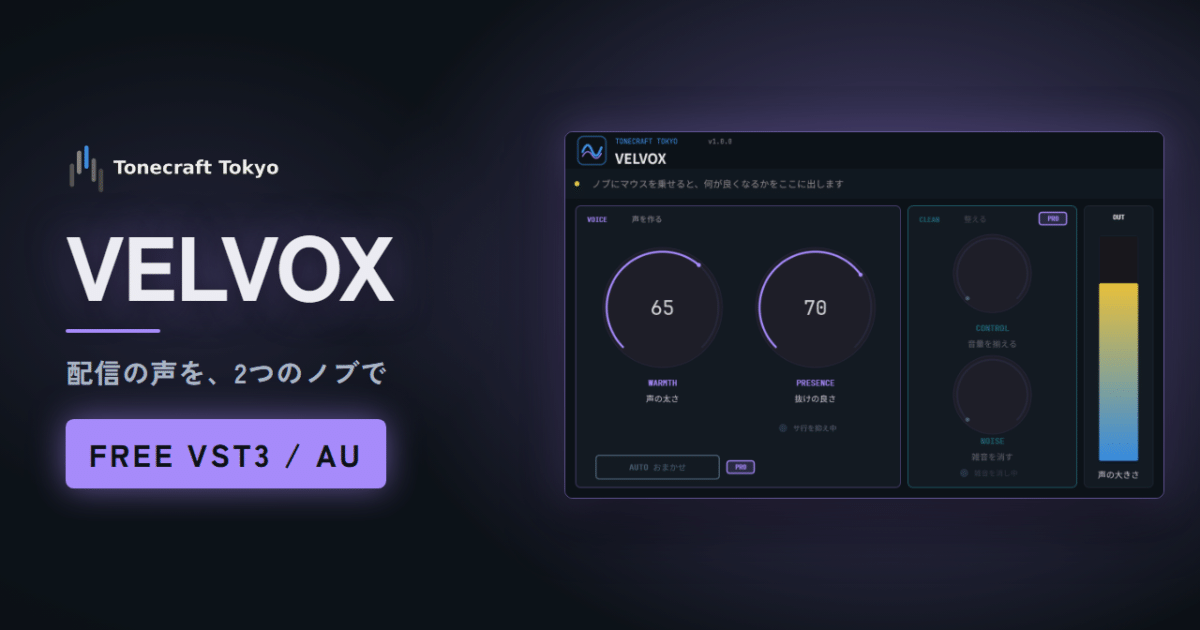
Two knobs, WARMTH and PRESENCE, keep your voice from getting buried under music or game audio. No added latency.
VELCANTO: adds shine and space to your singing (free)
Three knobs, SHINE, SPACE and ECHO, add hall reverb or a karaoke-style echo to your singing. The free version adds no latency.
SILENTIQ: removes noise with AI (free trial)
Removes background noise while you talk, like air conditioners, PC fans and typing. No GPU needed. The trial mixes in a short burst of noise every 30 seconds, so you need the full version for live streams.
Where the three go
| Built-in slot | Plugin |
|---|---|
| 2 Noise Suppression | SILENTIQ |
| 4 Equalizer / Compressor | VELVOX |
| 5 Reverb or echo | VELCANTO |
If you use SILENTIQ, remove the built-in Noise Suppression. VELVOX and VELCANTO keep their output from distorting no matter how far you turn the knobs, so you don’t need a Limiter after them. They can’t fix sound that is already distorted at the mic, though. If that happens, lower the mic input.
VELVOX Pro has its own compressor (CONTROL) and noise gate (NOISE). If you use Pro, remove the built-in Compressor and Noise Gate.
Before you add them: install atkAudio Plugin
VELVOX, VELCANTO and SILENTIQ are all VST3. The built-in “VST 2.x Plug-in” filter only reads VST 2, so it can’t load them. The free OBS plugin atkAudio Plugin lets you load VST3 plugins from your mic’s audio filters (OBS Studio 31.1.1 or later, 64-bit). Steps are in How to Use VST3 Plugins in OBS Studio.
Add one “atkAudio Plugin Host” filter per plugin.
Chain for talk and game streams
- SILENTIQ (MODE: NARRATION)
- VELVOX
Pushing STRENGTH too far in SILENTIQ makes your voice muffled or metallic. An air conditioner or extractor fan usually goes away at STRENGTH 10 to 20, a steady hiss at 20 to 40. Stop once the noise is gone.
In VELVOX, turn up PRESENCE if the game buries your voice, and WARMTH if your voice sounds thin. Harsh S sounds are tamed automatically. When the bar on the OUT meter stays inside the band, the level is right for streaming.
SILENTIQ adds about 40 ms of latency. To line up your webcam, add a “Video Delay (Async)” filter to the camera source and set it to 40 ms.
Chain for singing streams
- SILENTIQ (MODE: VOCAL)
- VELVOX (same settings as for talk)
- VELCANTO
NARRATION can cut into held notes and vibrato, so use VOCAL for singing.
In VELCANTO, turn up SHINE if the backing track buries your voice. If you are not sure, start from the DEFAULT preset, then switch to BALLAD for slow songs or UPTEMPO for fast songs with a busy backing. With VELVOX earlier in the chain, set SHINE below its default of 40 and adjust by ear.
If you would rather choose the type of room, use ENCOREHALL in this slot instead of VELCANTO.
SILENTIQ in VOCAL mode adds about 60 ms of latency, so on stream your singing lands slightly behind a backing track played from your PC. Set “Sync Offset” to 60 ms on the source playing the backing track to line them up (gear icon in the audio mixer, then “Advanced Audio Properties”).
Talk and singing in one stream
Set up the singing chain above, and when you talk, turn the VELCANTO filter off with the eye icon. VELVOX stays on, so your voice sounds the same as on a talk stream.
With VELCANTO Pro, switch the SING button off in the plugin to return to your natural voice. The reverb and echo ring out instead of cutting off.
When the paid versions help
- SILENTIQ full version ($6.50): try the trial first to check that it removes the noise in your room.
- VELVOX Pro ($3.25): adds CONTROL, which evens out quiet talk and shouting, and NOISE, which removes noise while you aren’t talking. AUTO sets all four knobs after you talk for 10 seconds. For gamers who yell.
- VELCANTO Pro ($3.25): adds PITCH, which pulls only drifting notes toward the nearest note and leaves in-tune notes and inflections alone. It also has AUTO to pick the KEY by listening to the song, ROBOT for a stepped robotic voice, the SING button above, 7 presets and saving your own settings. For singers who notice notes drifting in the chorus.