Hiss, fan noise, air conditioner hum, electrical hum, room noise: if the noise stays the same from start to finish, a free tool can take most of it out of a vocal recording.
- Already editing in Audacity: its built-in Noise Reduction
- Want a plugin you can insert on the vocal track in your DAW: Denoiser Classic (Windows, Mac, Linux) or ReaFIR (Windows only)
- No noise-only section in the recording, or you also want to fix mouth clicks, plosives and sibilance: PUREVOX
4 free tools compared
| Tool | Type and OS | Noise profile |
|---|---|---|
| Audacity Noise Reduction | Effect inside Audacity. Windows, Mac, Linux | You select a noise-only part first (Get Noise Profile) |
| Denoiser Classic (Bertom Audio) | Plugin. Windows: VST3, AAX. Mac: VST3, AU, AAX. Linux: VST3 | — |
| ReaFIR (Cockos, in ReaPlugs) | VST2 plugin. Windows only | Subtract mode builds a noise profile |
| PUREVOX (Tonecraft Tokyo) | Standalone app. Windows 10 / 11, macOS 11 or later | Automatic from the whole file. You can also select a noise-only part or load a separate noise recording |
Based on each maker’s official page or manual as of November 2026. “—” means the official page doesn’t say.
Audacity Noise Reduction
Select a section where only the background noise is present, click Get Noise Profile, then select the whole vocal and apply the effect. The manual requires at least 0.05 seconds of noise and says a longer profile works better. The three sliders are Noise Reduction (dB), Sensitivity and Frequency Smoothing. Set Noise from Reduce to Residue to hear only what is being taken out. If you can hear words in the Residue, you are removing part of the voice. Audacity manual: Noise Reduction
Denoiser Classic
Bertom Audio describes it as zero latency and light on CPU. It is pay what you want, and you can enter zero. The official page doesn’t explain how it decides what is noise. Official page
ReaFIR
Part of ReaPlugs, a free bundle of REAPER’s stock plugins. Its Subtract mode builds a noise profile and removes it. ReaPlugs is a Windows-only VST2 plugin, and the latest version on the download page dates from 2016, so it won’t load in a DAW that only supports VST3. Official page
PUREVOX
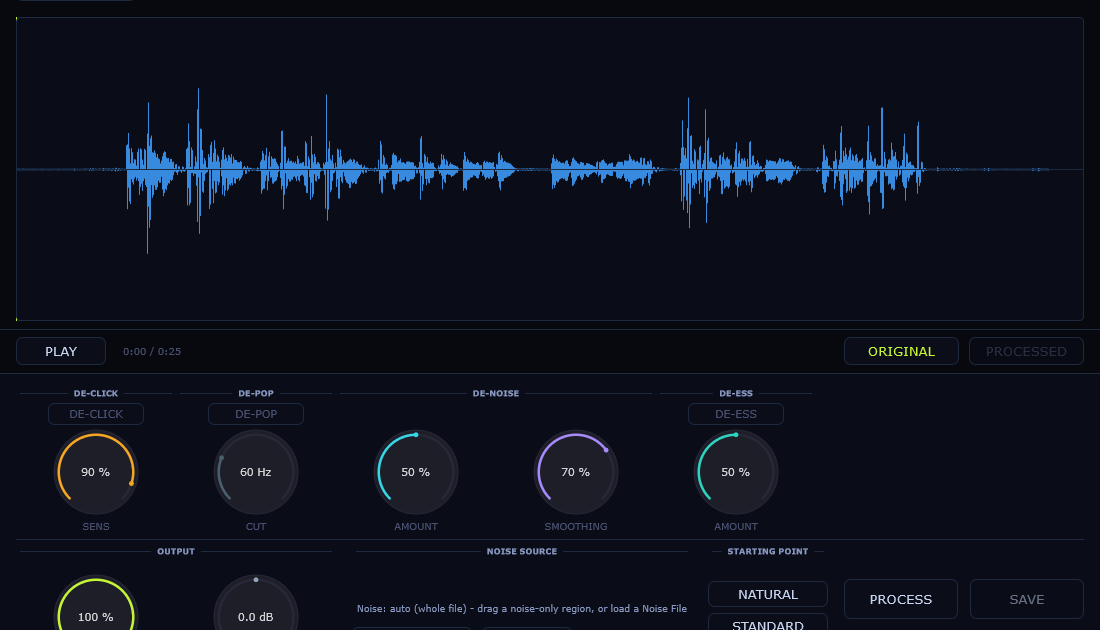
We make this one. Open a file, press PROCESS, and A/B between ORIGINAL and PROCESSED while it plays. It finds the noise by looking at the whole file, so it works even when the recording has no noise-only section. Three buttons, NATURAL, STANDARD and STRONG, set the reduction strength. DE-CLICK, DE-POP and DE-ESS are off by default and handle mouth clicks, plosives and sibilance. Save the result as a WAV and import it back into your DAW. PUREVOX download page
Noise these tools can’t remove
Audacity and PUREVOX are built for constant background noise. The Audacity manual says its effect is not suitable for traffic or an audience, and PUREVOX has the same limit: a passing car, people talking outside, a slamming door, wind, or an air conditioner whose level keeps changing. Vocal bleed from someone else near the mic can’t be removed either. It doesn’t matter whether the noise is a low rumble or a high hiss.
Re-recording is usually quicker than repair. When that isn’t possible, cut or lower the gaps between phrases by hand.
How much to remove
Push any of these too far and the voice gets thin and the breaths and gaps between phrases take on watery, metallic artifacts. Listen there rather than to the loudest phrases: that is where over-processing shows first. Stop at the lowest setting where the noise no longer bothers you. If the result still sounds a little too clean, blend a little of the dry signal back in. A faint, steady noise floor sounds more natural than gaps that chatter between noise and silence.