
If chat keeps saying your voice is buried under the game or sounds muffled, check the game volume first. If your voice is still hard to follow after that, add a filter to your mic in OBS that shapes the voice itself.
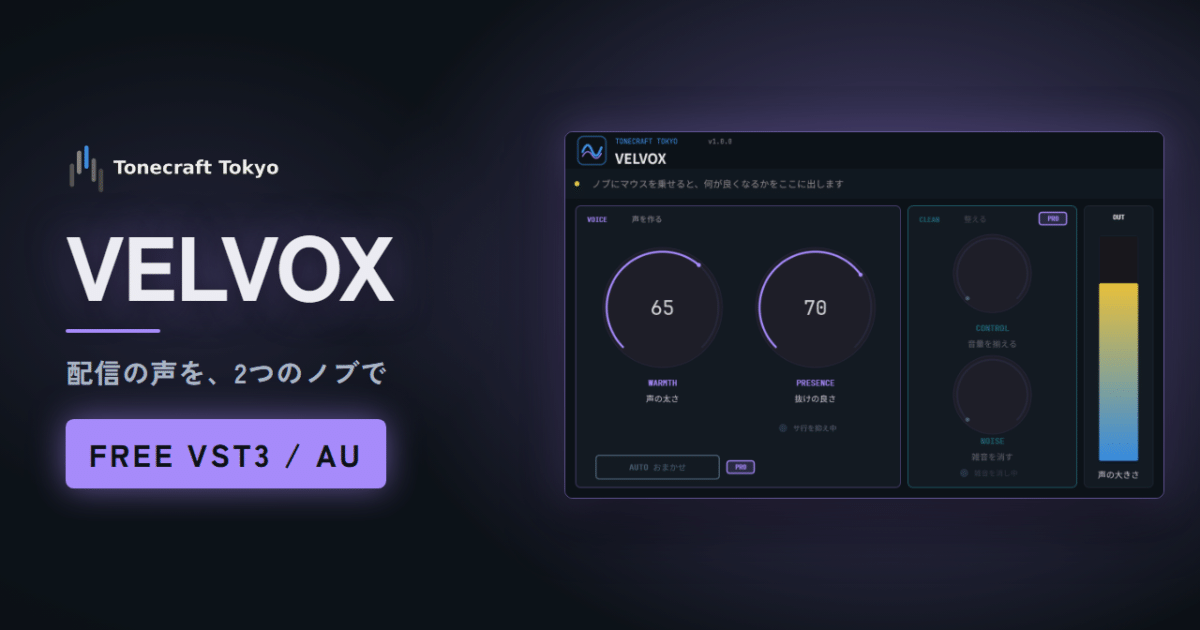
VELVOX is a free voice plugin we made for streamers. It has two knobs: WARMTH (body) and PRESENCE (clarity).
- If your voice is buried, lower the game audio first. If it is still buried, turn up PRESENCE in VELVOX
- Set it from a recording on earbuds, not from what you hear while talking
- Distortion when you shout or keyboard noise in the pauses: VELVOX Pro. Noise while you talk: SILENTIQ
A buried voice isn’t always the voice’s fault
What viewers hear is your mic and the game audio (Desktop Audio) mixed by OBS. If the game is too loud, no voice filter will save you.
Turn Desktop Audio down in the OBS audio mixer until your mic meter peaks above the game while you talk. If that fixes it, you don’t need a filter. Shape the voice only when lowering the game takes the punch out of it, or your voice still sounds distant.
Judge it from a recording
While you talk, you hear yourself through your skull and the room. That isn’t what goes out on stream, so adjusting by ear while you talk is misleading.
- Play the game at stream volume, commentate for about a minute and record it in OBS
- Listen back on earbuds or a phone, the way viewers do
- Turn the VELVOX filter off with the eye icon, record again and compare
When the mic itself sounds bad
A muffled voice, or one that sounds thin like a phone call, can’t be fixed with filters. Turn off every filter on your mic with the eye icons, record, and listen.
If it still sounds bad, the cause is the mic or the PC. A common one is a Bluetooth headset or earbud mic. When Windows uses a Bluetooth mic, it switches to the hands-free mode, and the sound drops to mono at 8 kHz or 16 kHz. That is why it sounds like a phone call, and no OBS setting brings it back. Use a USB or wired mic for streaming.
If it only sounds bad with filters on, turn them back on one at a time and record each time to find the one causing it.
Are the built-in OBS filters enough?
OBS has a 3-Band Equalizer and a Compressor. If you know which band to move and by how many dB, they are enough.
VELVOX is for setting it by ear without picking numbers. PRESENCE lifts your voice above the game audio, and WARMTH adds body to a thin voice. If harsh S sounds come up as you push it, VELVOX tames them on its own. It never distorts no matter how far you turn the knobs, and it adds no latency, so your voice stays in sync with your webcam.
Setting the knobs
Talk with the game playing and turn PRESENCE up until your voice stops getting buried, then confirm with a recording. More PRESENCE brings the voice forward, but too much makes it sound harsh. If you go too far, back off a little. If your voice sounds thin, add WARMTH.
Watch your level on the OUT meter in VELVOX. When the bar stays inside the band while you talk, the level is right for streaming. If it doesn’t reach, raise the mic input itself (your PC’s sound settings or the knob on your audio interface), not the OBS mixer. The mixer comes after VELVOX, so the meter won’t move.
When the free version isn’t enough
| Problem | Use |
|---|---|
| Shouting distorts, or quiet talk and shouting are far apart in level | CONTROL in VELVOX Pro |
| Keyboard or fan noise while you aren’t talking | NOISE in VELVOX Pro |
| Keyboard or air conditioner noise while you talk | SILENTIQ (before VELVOX) |
| Adding reverb or echo to your singing | VELCANTO (after VELVOX) |
VELVOX Pro also has AUTO, which sets all four knobs after you talk for 10 seconds, so it suits people who would rather not touch knobs at all. If you use Pro, remove the built-in OBS Compressor and Noise Gate, since Pro does the same jobs.
If your voice still sounds thin or distant after all this, check how far the mic is from your mouth. A voice picked up from far away can’t be brought closer with filters.
Before you add it to OBS
VELVOX is VST3, so the built-in “VST 2.x Plug-in” filter can’t load it. Add it through the free atkAudio Plugin for OBS (OBS Studio 31.1.1 or later). Setup is on the product page and in the manual. For where it goes in your filter chain, see OBS Mic Filter Order. If it doesn’t show up in atkAudio Plugin, see How to Use VST3 Plugins in OBS Studio.